How to Connect Your MT5 Account to ChatGPT From an Android Phone
Connect your MT5 account to ChatGPT from an Android phone: read-only first, trading only when you choose, with any broker, and the honest limits.
On this page
You trade on your phone, and you want ChatGPT to look at your MetaTrader 5 account with you: your balance, your open positions, the price of gold, and, when you are ready, to place or manage a trade you have approved. This guide sets that up from an Android phone alone, with fxapis as the bridge between ChatGPT and your MT5 account.
The short answer to the question we hear most: fxapis can trade, not only read. Trading stays off until you turn it on, for one account at a time. Whether ChatGPT itself lets you use the trading part depends on your ChatGPT plan, and we cover that first. That way you know before you start.
- Your Android phoneChrome on chatgpt.com, or the ChatGPT app
- ChatGPTunderstands your question and picks a tool
- fxapis connectorchecks what you allowed, then asks your account
- MT5 at your brokerExness, IC Markets, Pepperstone, XM, a prop firm such as FTMO, or any other MT5 broker
What you need
- An Android phone with Chrome and an authenticator app (Google Authenticator, Microsoft Authenticator or similar).
- Your MT5 login, password and server name. Your broker sends them when you open the account and shows them in its client area — for example on the account card in Exness's Personal Area, or under Credentials in FTMO's Client Area. fxapis works with any MT5 broker.
- A ChatGPT plan that can add a custom connector. OpenAI's help pages (checked on 25 October 2026) say that adding a custom MCP server is a web-only feature. It is not done in the mobile app. Plans differ:
- Business, Enterprise and Edu: full support, including actions that change things, such as trades. On Business, only a workspace owner or admin can add one.
- Pro: custom servers with read permissions only.
- Other plans: OpenAI's page does not list them for custom servers. Open Plugins in ChatGPT to see what your account offers.
- An fxapis workspace on Personal. $9 a month or $90 a year for one live and one demo account, starting with a 14-day free trial on demo accounts, with no card. Details are under Which fxapis plan.
Set it up, step by step
Step 1 Create your fxapis workspace
In Chrome, open fxapis.com/sign-up and create your workspace. That link starts a 14-day free trial of Personal: demo accounts only, no card. To connect a live account or a prop-firm account, you need to pay for Personal; see the pricing page.
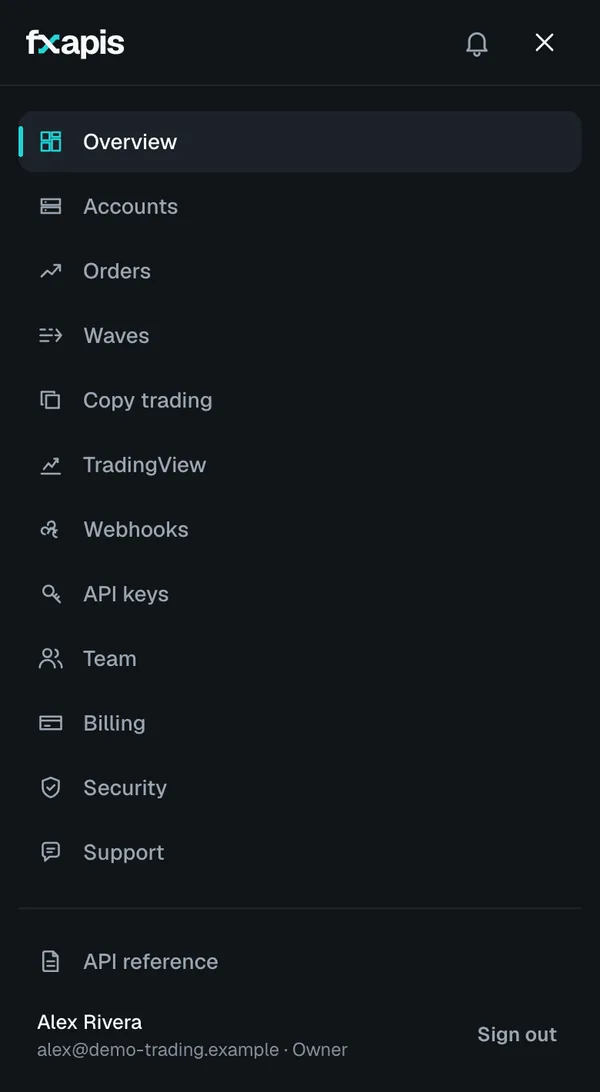
The console works on a phone. The menu button at the top opens Accounts, API keys, Security and Support.
Step 2 Turn on two-factor sign-in
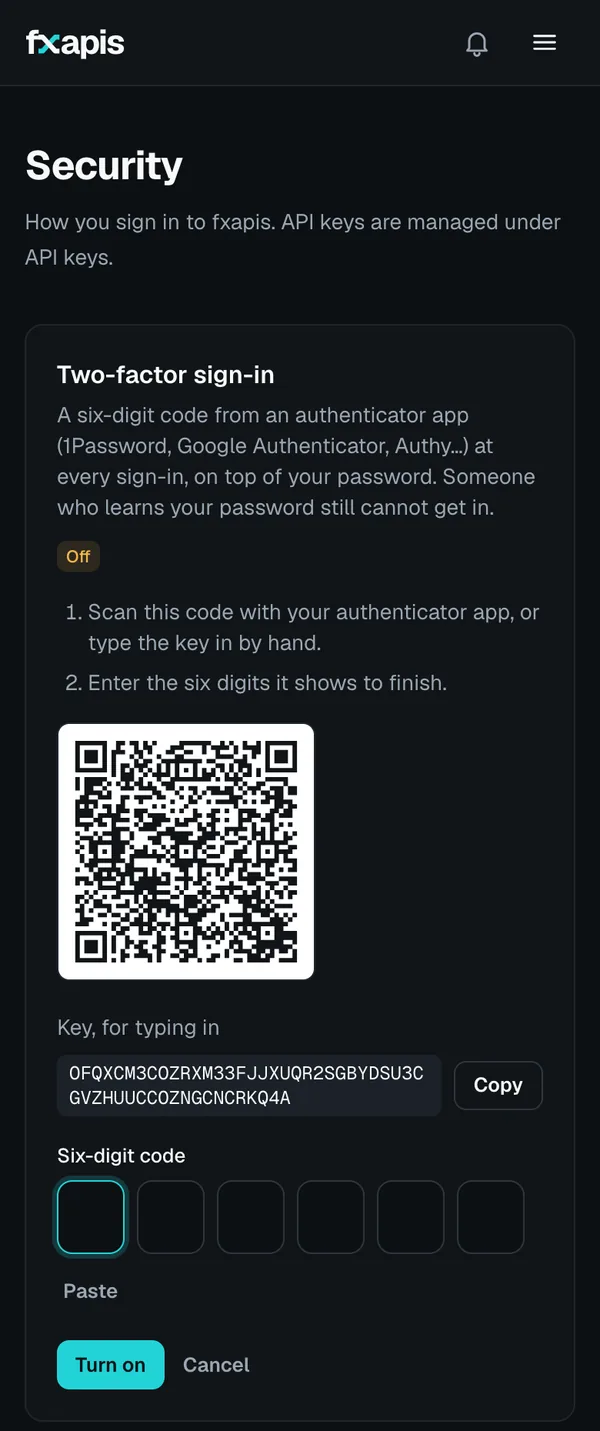
Open Security in the console and turn on two-factor:
- Copy the key, for typing in that the page shows. You can't scan a QR code shown on the same phone.
- In your authenticator app, add an account and paste the key.
- Type the six-digit code back into fxapis, and keep the backup codes somewhere safe.
You need two-factor before ChatGPT may ever trade for you. It is best to turn it on now. We ask for a code only for money and access actions, such as creating a key that can change accounts. We don't ask while you chat.
Step 3 Connect your MT5 account
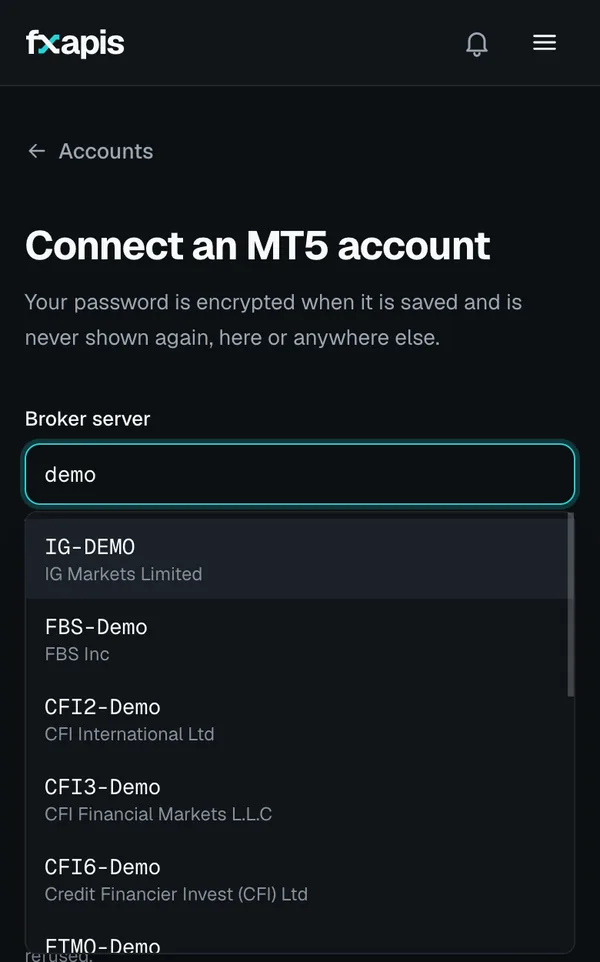
In the console, open Accounts and tap Connect an account. Fill in:
- Broker server: type your broker's name and pick the server shown in MetaTrader. Names look like
Exness-MT5Trial8(an Exness demo),ICMarketsSC-Demo(an IC Markets demo),Pepperstone-Demo,XMGlobal-MT5 6(XM) orFTMO-Server(FTMO). Copy yours from your broker; don't guess the number. - Login: your MT5 account number.
- Trading password: see the tip below.
- Label (optional): a name you'll recognise, for example "gold demo".
- Mode: leave it on On demand, the default — it comes online when something needs it and goes offline by itself when idle.
Tap Connect account. It opens the account's page straight away, showing it connecting; within a minute or two it should reach ready. If the server or password was wrong, the same page says so and offers the fix, such as a server suggestion or a box for the right password.
Your password is encrypted when it arrives, is never shown again, and is used only to log your account in. It never goes through ChatGPT. That's why connecting an account isn't something the assistant can do.
Step 4 While it comes online
Give it a minute: the page you landed on keeps checking until the account reaches ready, which proves the login, password and server were right.
With On demand mode, the account goes to sleep after a few idle minutes to save resources, and wakes up again when something needs it. While ChatGPT has only read-only access, it can't wake a sleeping account by itself. If an answer says the account isn't ready, open its page and tap Bring online now.
Step 5 Add fxapis to ChatGPT
In Chrome on chatgpt.com, signed in to your ChatGPT account:
- Open Plugins, tap + and choose Add custom MCP server.
- Name: fxapis. URL:
https://api.fxapis.com/mcp/insights. That is our read-only connector, which has no trading tools at all. - Authentication: OAuth.
- Read OpenAI's risk warning and tick I understand and want to continue. Then tap Create as a plugin and install it.
On some accounts, the older menu shows instead: Settings → Apps → Create, with the same URL and OAuth.
Step 6 Sign in and allow read access
ChatGPT opens fxapis's sign-in page. Sign in, then check the screen. It shows the app that is asking, the read access it gets (accounts, positions, orders, history, prices) and nothing else. Tap Allow read access.
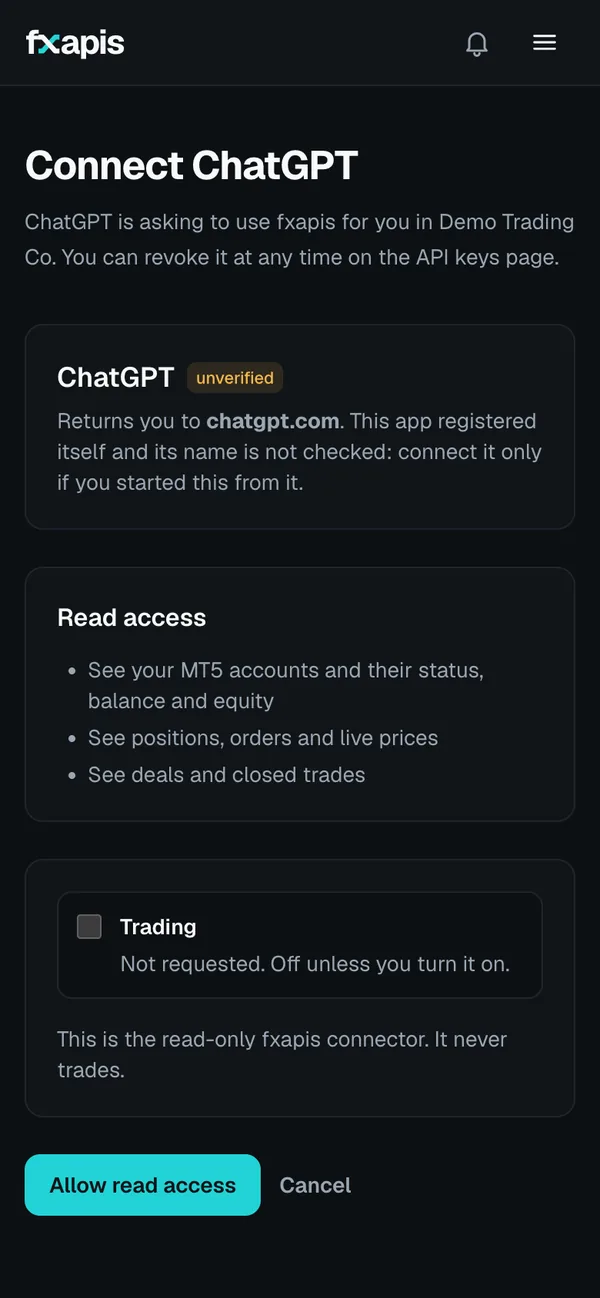
That's all. In ChatGPT, open the app's settings and set it to ask you before it acts. OpenAI calls this Always ask. ChatGPT then checks with you before each action.
Step 7 Try it
Start a new chat, type @ and pick fxapis, then ask:
- "What's the balance, equity and free margin on my demo account?"
- "List my open positions with their profit or loss."
- "What's the current XAUUSD bid and ask, and is the gold market open right now?"
- "What's the minimum lot size for XAUUSD on my account, and how much margin would 0.10 lots need?"
- "Show my closed trades from this week."
Turning on trading, and turning it off
Only do this once read-only works and you have tried it on a demo account.
- Check your ChatGPT plan allows actions that change things. Per OpenAI, that is Business, Enterprise or Edu today.
- Two-factor must be on (Step 2). The account must use its trading password, not the investor one.
- Add the full connector as you did in Step 5, with the URL
https://api.fxapis.com/mcp. - On the fxapis sign-in screen, tick Trading, then pick only the accounts it may trade on. Live accounts are marked in red. You can also set the most orders it may open a day and the largest order size. Then tap Allow, with trading. No code is asked here: you already proved it when you signed in.
From then on, ChatGPT can open and close positions, move stop loss and take profit, and place or cancel pending orders, on the accounts you picked, within your limits. Our API enforces those limits, whatever the AI decides.
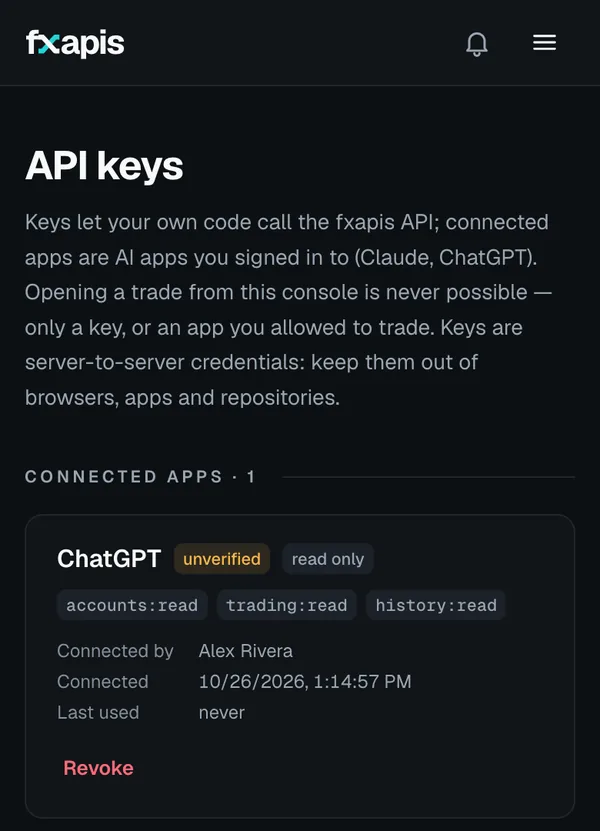
To turn trading off or cut access, open API keys → Connected apps in the console and tap Revoke next to ChatGPT. It loses access on its very next request. You can also disconnect it in ChatGPT's Plugins settings. To change which accounts it may trade, revoke it and sign in again.
What it can and can't do
| What you ask for | Works? |
|---|---|
| See balance, equity, margin and margin level | Yes |
| List open positions, pending orders and their profit or loss | Yes |
| Live XAUUSD price, spread, market hours, lot sizes and margin | Yes |
| Your trade history | Yes |
| Analyse a chart screenshot you attach | Yes, by ChatGPT, from the image |
| Open, close and manage trades | Yes, after you turn on trading for that account |
| Price history (candles) | After our next scheduled maintenance |
| See your MT5 app's chart, drawings or indicators | No |
| Watch the market or trade while you're not chatting | No, it only acts when you ask |
| Connect an account or read your passwords | No, by design |
| Promise a profit or a correct analysis | No |
Staying safe
- Start on a demo account. A demo account from your broker (an Exness MT5Trial, IC Markets or Pepperstone demo, for example) is a good place to learn how ChatGPT behaves before real money is involved.
- Read-only first, trading later. Use the read-only connector and, if you like, the investor password, until you trust the setup.
- Never type a password into a chat. Not your MT5 password, not your fxapis password, not a two-factor code. fxapis never asks for them in ChatGPT.
- Limit what it may do. Trade only on the accounts you pick, with a maximum lot size and a daily order count.
- Revoke any time from API keys → Connected apps.
If you trade a prop-firm challenge
Prop firms — FTMO, FundedNext, The5ers and others — set their own rules, and the firm decides what is allowed on its accounts. FTMO's Forbidden Trading Practices page (last changed 12 October 2026), for example, says, among other things:
- you must not let any third party access or use your FTMO account, or have a third party trade for you;
- you must not use software or AI that manipulates, abuses or gives an unfair advantage;
- copying trades from someone else is forbidden;
- automated trading must not make the account hyperactive (more than 2,000 server requests a day).
A hosted service logging in to your account, and an AI assistant placing orders you approve, may or may not fit those rules. We can't answer that for any firm. Before you connect a challenge or funded account, read your firm's current rules and ask its support in writing. If in doubt, use fxapis read-only or on a separate demo account, and trade your challenge yourself.
Which fxapis plan
- Personal, $9 a month or $90 a year: one live and one demo account, 1,000 opening executions a month, always-on for $12 a month more. Use it for a live account at any broker, or a prop-firm account.
- The 14-day free trial of Personal: Personal's features on two demo accounts, with no card. The trial takes demo accounts only: our plan check counts a server that isn't named as a demo (such as
FTMO-Server) as a live account, so that one needs the paid plan. - Production ($99 a month) and Business ($749 a month) are for products and teams with more accounts. Each starts with a 14-day free trial of that plan on up to 5 demo accounts, with no card. Enterprise is priced with you.
You can have one Personal workspace per person. Closing a position is never blocked for billing. See pricing for the details.
Sources
Checked on 25 October 2026. These pages change, so check them before you rely on a detail:
- OpenAI: Connecting custom MCP servers in ChatGPT, Connected apps in ChatGPT and Connect and test your plugin.
- FTMO: Forbidden Trading Practices and How do I log in to MT5?
- Exness: Trading account login and server details.
- fxapis: the MCP server guide, the read-only connector and investor vs trading password.
Questions about your setup? Write to [email protected], or open a ticket from Support in the console once you're signed in.